
Transform an Image into a New Visual Format
Use a focused Transform preset for deliberate reinterpretation.
Use Transform when you want a broad visual reinterpretation, not a narrow edit. The source boundary is upload or URL, not a Gallery-input flow. The reviewed owned source used the neutral Plushie preset, Low quality and Count 1 on 1 August 2026: 5 Gold displayed and 5 Gold settled. Its completed result was titled Pastel Plush Star and was available in Gallery after reload.
Decide between Transform and an edit
Choose Transform for a new visual format. Choose Quick Edit for one named change, or Restyle when the original scene should remain broadly recognisable. Transform begins with an upload or URL, so download a permitted Gallery image first if that is your source.
1. Choose one neutral preset
Open Transform, provide the owned source by upload or URL, choose Plushie, set Low and Count 1. Do not infer that every preset or quality has the same cost.
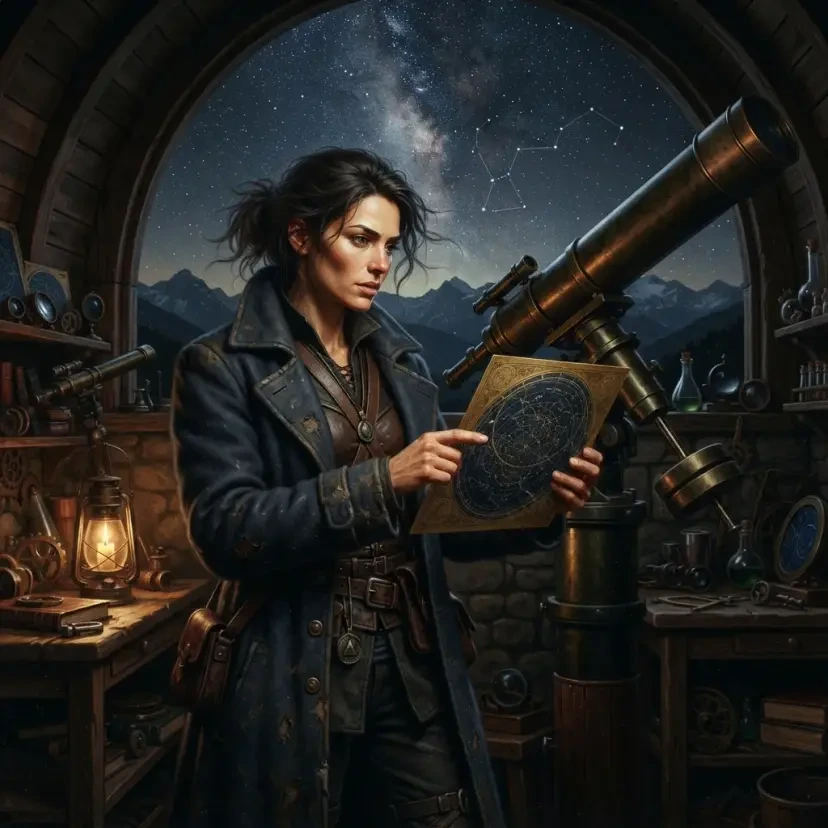
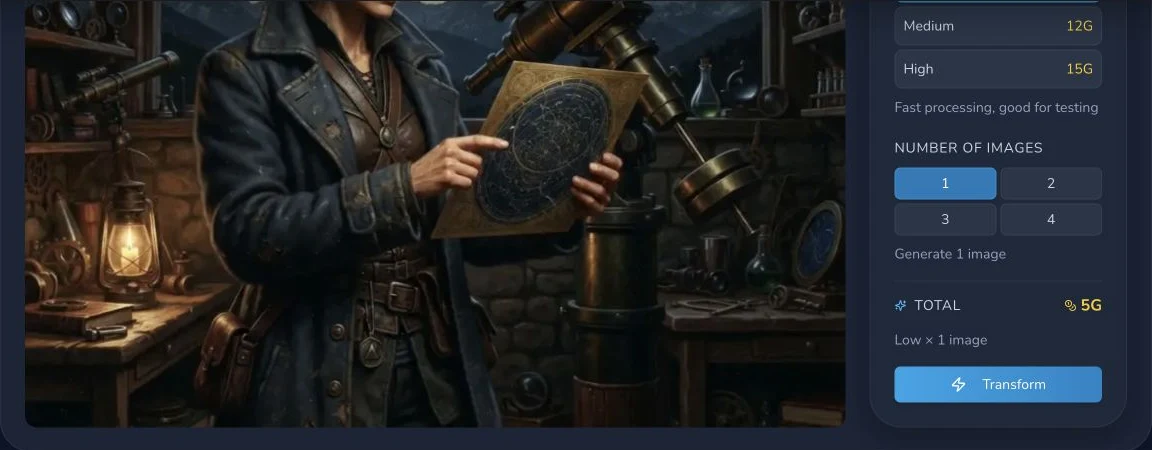
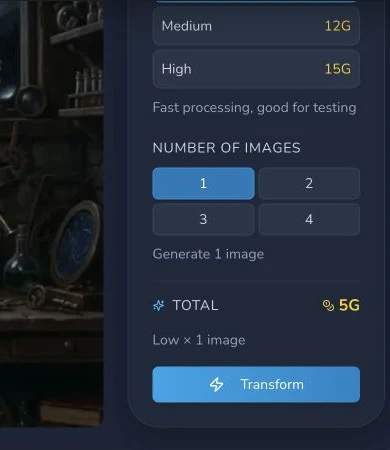
2. Submit once, then judge the reinterpretation
Read the estimate, submit once and wait for completion. The reviewed result, Pastel Plush Star, settled at 5 Gold. Check that the output is useful as a new format, not that it duplicates the source.

Checkpoint
Check your result
- The source entered through upload or URL.
- Preset, quality, Count and amount were checked before one submission.
- You evaluated it as a broad new interpretation and saved the result deliberately.
Troubleshooting
If something looks wrong
Troubleshooting
- Symptom
- The result does not preserve the source.
- Likely cause
- Transform is a broad reinterpretation.
- Next safe action
- Use Quick Edit or Restyle when preservation is the higher priority.
- Symptom
- A Gallery item cannot be selected as input.
- Likely cause
- Gallery input was not available in the reviewed Transform route.
- Next safe action
- Use a permitted downloaded file or URL instead.
- Symptom
- The estimate changed.
- Likely cause
- Quality or Count changed the configured request.
- Next safe action
- Re-read Low, Count 1 and the live amount before submitting once.
Prepare for a broad result
Before uploading, remove any source file you do not have permission to process. A source boundary is also a rights boundary, not merely a technical input choice. Name the intended new format in a note so the result can be judged against a decision rather than novelty.
When comparing candidates, keep the original beside the completed interpretation. Check silhouette, palette, subject readability and the intended format. If none meets the stated brief, stop there and revise the source decision before another paid request.
Transform is most useful when a new visual format matters more than exact continuity. Before paying, decide what must survive conceptually, such as the star-chart motif or colour family, and what can change, such as material, proportions and composition. Keep the original file. The route accepts an upload or URL, so its source boundary is more explicit than a Gallery picker.
Low is a reviewed quality choice, not a claim about all models or presets. Count 1 makes the 5 Gold display easy to reconcile with one result. After completion, inspect whether the output answers the new-format brief, then download it and keep the checksum if you need to distinguish it from similarly named outputs. The reviewed Pastel Plush Star was present in Gallery after reload, but that does not make Gallery an input path for a future Transform request.
If the output feels too close to the original, another tool may fit better. If it feels too different, that is normal Transform behaviour: return to the original and use Restyle or Quick Edit instead of repeatedly transforming a transformed result. Avoid trademark-led preset claims. A neutral visual brief remains portable when the available preset catalogue changes.