
Quick Edit: Change an Image in Plain Language
Make one controlled change to an owned image.
Change one named detail while keeping the owned Candlelit Star Chart original available for recovery. This lesson uses the reviewed GPT Image 1.5 request on 1 August 2026: 6 Gold displayed and 6 Gold settled. The result was available in Gallery after reload.
Decide whether Quick Edit fits
Use Quick Edit for one local, describable alteration. Use a mask in Spot Edit when the changed area needs a hard boundary, and use Transform when broad reinterpretation is wanted. Keep the untouched source so a disappointing result is reversible.
Make one controlled request
1. Name the change and what must stay
Choose GPT Image 1.5 and, where it appears, Medium quality. Write the requested change beside its preservation clause: “Change only the brass star chart in the character's hands to a small glowing blue crystal orb.” “Keep the character, face, midnight-blue coat, pose, framing, background, lighting and art style unchanged.”
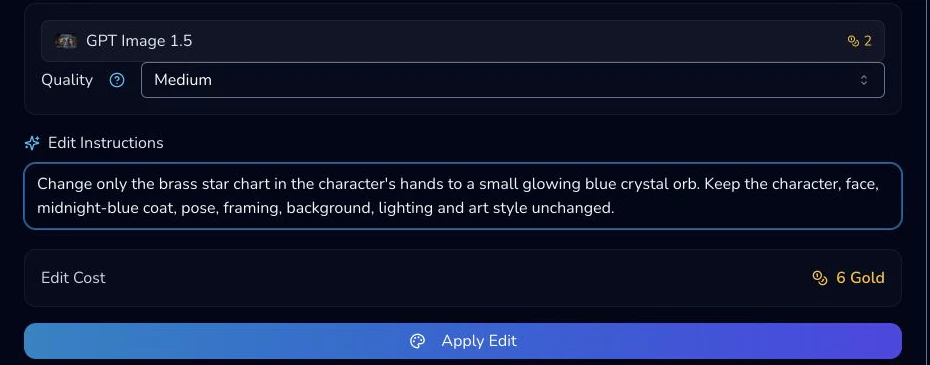
2. Read the live amount and submit once
The reviewed mobile footer displayed 6 Gold. Re-read the model, instruction and amount, then select Apply Edit once. Wait for a terminal result before doing anything else.

3. Compare, then retrieve
The completed request settled at 6 Gold. Compare the chart, hands, face and background against the untouched original, then reopen Gallery after reload to find the distinct result.

Checkpoint
Check your result
- The original is still available.
- The change and preservation clause are both explicit.
- You submitted once and checked the terminal result and Gallery after reload.
Troubleshooting
If something looks wrong
Troubleshooting
- Symptom
- Too much of the scene changed.
- Likely cause
- The instruction was too broad.
- Next safe action
- Return to the untouched original, narrow the named change and restate what must remain.
- Symptom
- Medium is missing.
- Likely cause
- The selected model does not mount that control.
- Next safe action
- Treat quality as model-specific and use only live controls.
- Symptom
- Gallery does not show the result.
- Likely cause
- The request may not have reached a terminal state yet.
- Next safe action
- Wait for completion, reload once and check the distinct result before retrying.
Review, recover and retry safely
Keep a short note of the original filename, the exact instruction, displayed amount and accepted result. That small record makes a later comparison possible without relying on memory or a changing interface.
Before submission, separate the requested change from the preservation boundary. “Make it better” is too broad because it gives no test for success. A usable instruction names the object, the replacement and the material context. The preservation clause lists the parts a reader will compare: subject, pose, hands, lighting, background and frame. Read it aloud once. If you cannot tell what should change, narrow it before Gold is involved.
After completion, compare at two scales. First check whether the requested blue chart detail exists and is legible. Then compare hands, face, silhouette and background at closer zoom. A plausible new chart does not make the result acceptable if a hand changed or the observatory was rewritten. The dated result was a distinct Gallery item after reload, but preserve the original independently of that convenience.
If only a small surrounding area changed, decide whether it is acceptable for the job. If a larger region changed, do not edit the edited result repeatedly. Return to the original, remove vague adjectives, specify one object and retain the preservation clause. Submit a new request only after the earlier result has reached a clear terminal state. Never double-click Apply Edit to chase a slow screen.