
Restyle, Remove and Replace Backgrounds
Choose between a whole-image style change and a background edit.
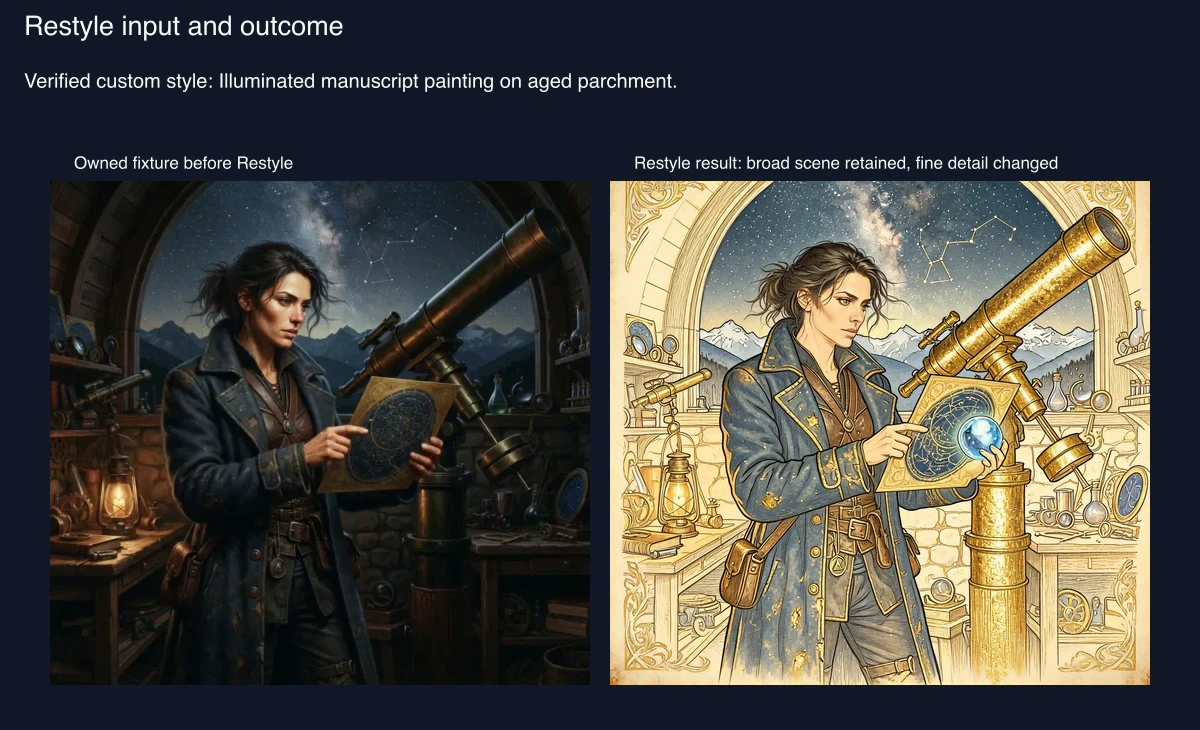
Choose Restyle to change the whole visual language, Remove Background for transparency, or Replace Background for a new generated setting. All three use the owned Candlelit Star Chart source from 1 August 2026. Restyle displayed and settled 4 Gold. Remove Background displayed 1 Gold and settled at 2 Gold. Replace Background displayed and settled 8 Gold.
Decide by the change you want
Restyle is for a new art treatment. Remove Background is for an alpha result you will inspect carefully. Replace Background makes a fresh setting, so treat it as a generative redraw, not a precise extraction.
1. Restyle the full image
Choose a model and a preset or custom style. The reviewed request was “Illuminated manuscript painting on aged parchment.” Compare pose, props and recognisable details, not just the overall palette.

2. Inspect transparency before relying on it
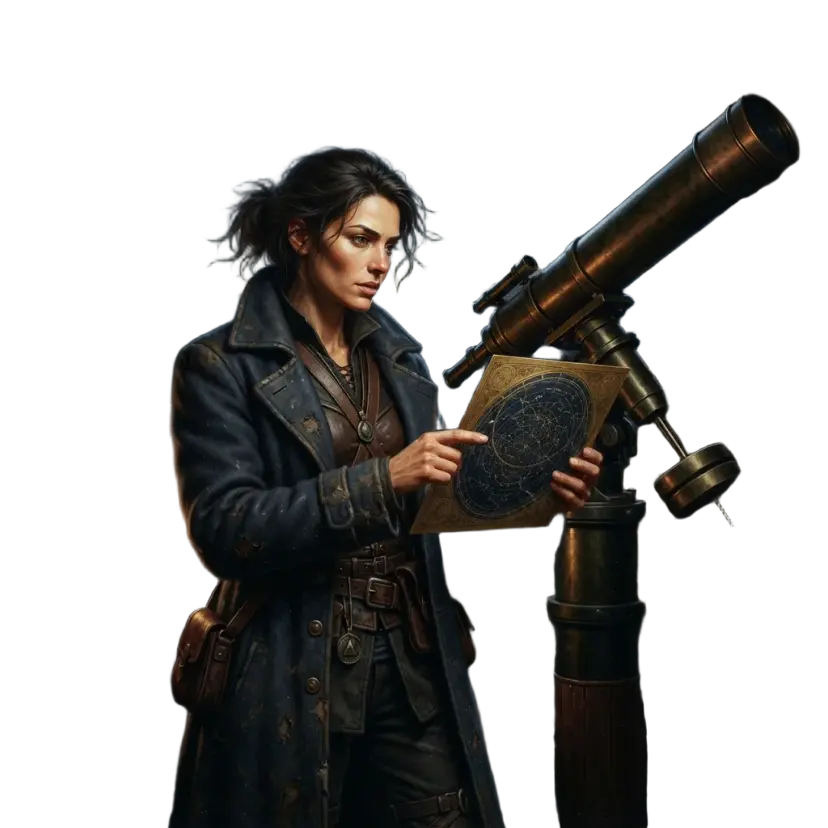
After Remove Background, view the subject against a contrasting backdrop. The source Gallery record was updated after reload, without a confirmed distinct result. Do not assume it has created a clean isolated asset.
3. Replace a setting with realistic expectations
The exact requested change was a windswept desert observatory at blue hour, with sandstone arches, distant dunes and a warm lantern, while keeping the character and pose natural. Review the face and hands as newly generated content.

Checkpoint
Check your result
- You chose the operation by its boundary.
- You inspected edges, identity and hands.
- You kept the original and checked the resulting Gallery state after reload.
Troubleshooting
If something looks wrong
Troubleshooting
- Symptom
- The subject edge looks broken.
- Likely cause
- Background removal has partial transparency or edge artefacts.
- Next safe action
- Do not treat it as a clean cut-out; return to the original or use a different workflow.
- Symptom
- The person changed after replacement.
- Likely cause
- Replace Background redraws more than the setting.
- Next safe action
- Review face and hands, then keep the original if fidelity matters.
- Symptom
- The style changed the pose.
- Likely cause
- Restyle affects the complete image.
- Next safe action
- Use a narrow edit instead when pose continuity is essential.
Inspect the result by operation
Use a duplicate or separate completed result for paid generative operations whenever the product provides one. That preserves a clean comparison target even when a tool updates an existing Gallery record.
Restyle changes the complete rendering logic. Check broad continuity first: the same character and scene should still be recognisable. Then check fine identity, pose and prop detail, which changed in the reviewed manuscript result. This is why a style change is a poor repair tool when continuity matters.
Remove Background should be tested over both light and dark temporary backdrops. Transparent pixels are useful only when the edge remains usable across the destination background. Here, extensive partial transparency and edge artefacts made the result unsuitable as a clean cut-out. The original source record was updated after reload, without a verified separate result, so retain a local copy before trying the tool.
Replace Background creates a new scene around a subject. Put the desired setting, time and key objects in the request, then examine broad silhouette, face, hands and foreground. Coherent edges are not proof of fidelity: the reviewed result redrew the face, hands and source scene. If you need a small setting correction, go back to the original and consider a masked edit instead.