
Video Studio Quick Start
Create and review one short text-to-video clip.
Create one short, reviewable video clip in Studio: choose Create, describe the shot, check the dated amount, submit once and wait for the completed result. This lesson covers /generate?contentType=video, which creates one clip. /video-studio is a separate multi-shot film workspace.
Prepare a small first clip
1. Open Video Create and set a bounded brief
Open Video Create, then keep Create selected. The reviewed request used Seedance 2.0 Mini Turbo, 16:9, five seconds, 720p and Generate Audio. Use a short scene that can be checked in five seconds, rather than trying to cover a whole sequence in the first request.
Write one paragraph that names the subject, the action, the place, the camera and the ending. For example: “A brass astrolabe rests on a walnut desk in a candlelit observatory. Its rings turn slowly as dust crosses the beam of light. Slow push-in from a medium view. End with the astrolabe centred and still.”
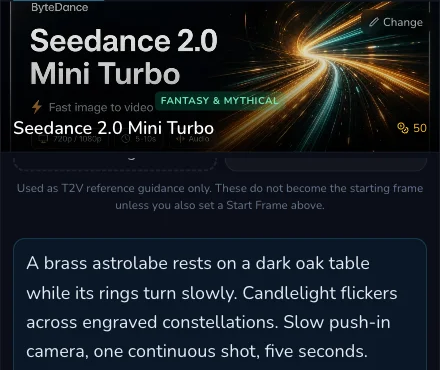
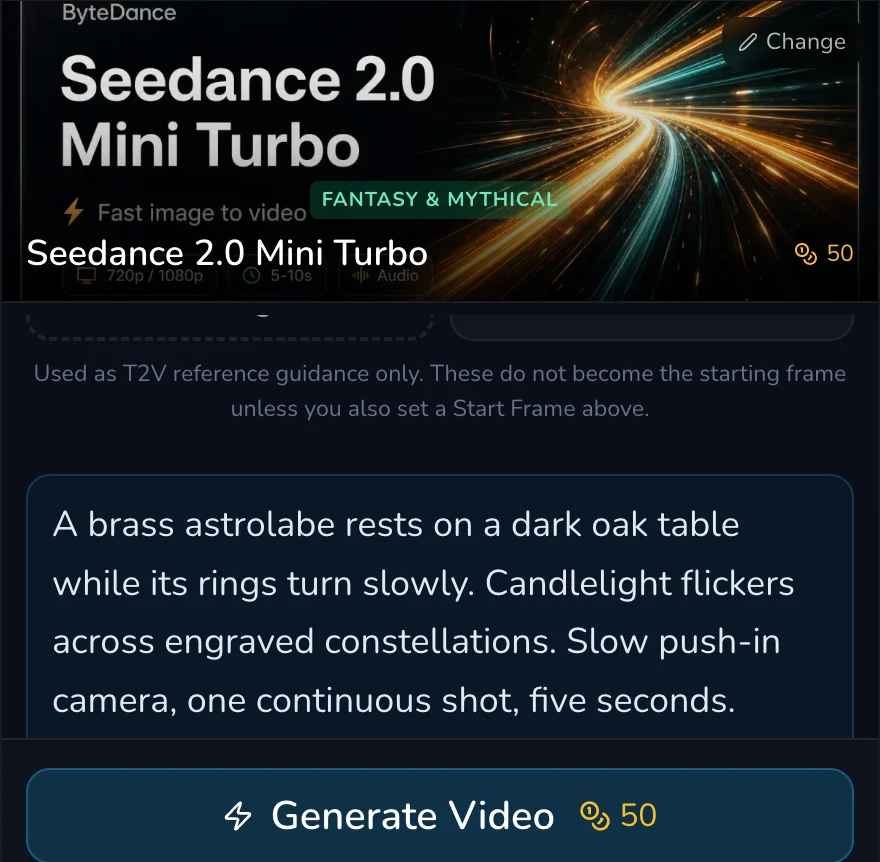
Submit once, then preserve the request state
2. Read the live amount and submit once
Check that the prompt, model, aspect ratio, duration, resolution and audio choice are all deliberate. The reviewed configuration displayed 50 Gold on 1 August 2026 and was submitted once. A click is a request, not a preview.
Do not double-click Generate, refresh because the page feels slow, or create a second matching request while the first is unclear. Keep the browser open if you can, and keep a short note of the exact prompt and visible configuration. That record lets you assess the actual result instead of trying to reconstruct the request later.
3. Wait for a terminal completion
Wait for the original request to reach a clear terminal state. The reviewed request completed under its own request record, had one request-linked 50 Gold debit, and then appeared in Gallery. Completion, settlement and Gallery arrival are receipt-backed facts, not claims made by the configuration screenshots.
Inspect the delivered clip
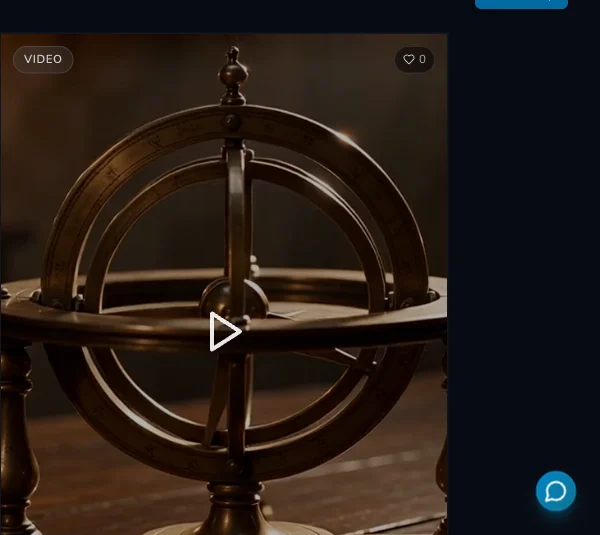
4. Check the shot against the brief
First watch without stopping. Ask whether the astrolabe, desk, candlelit observatory, turning motion and camera push-in are recognisable. Then watch again for abrupt movement, unwanted text, framing drift and an ending that cannot cut cleanly.
The delivered file measured 1266 by 726 pixels and 5.056 seconds. The 720p form label is a configuration label, not a promise of exact output pixels. Use the delivered file’s own metadata when your downstream work needs exact dimensions or duration.
Checkpoint
Check your result
- Create is selected and every setting matches the intended one-clip brief.
- The live amount was read before the one submission.
- The original request reached completed status and the result can be found in Gallery.
- The delivered clip is reviewed for subject, movement, framing and ending, using its actual metadata where precision matters.
Troubleshooting and a safe next attempt
If something looks wrong
Troubleshooting
- Symptom
- The request state is still unclear.
- Likely cause
- The original request may still be processing or its Gallery projection may not yet be visible.
- Next safe action
- Do not submit the same prompt again. Keep the original state, wait for a terminal result and check Gallery before deciding on another request.
- Symptom
- The clip is complete but the action is vague.
- Likely cause
- The prompt may describe a subject and mood without a single observable movement.
- Next safe action
- Preserve the completed clip, then revise only the action or camera sentence for one later request.
- Symptom
- The delivered dimensions differ from the form label.
- Likely cause
- A resolution label is not a guarantee of a fixed output pixel count.
- Next safe action
- Use the downloaded result metadata for delivery decisions and do not infer it from the label alone.
If the request reaches a clear failure state, preserve the request details and check the relevant account history before considering a deliberate new request. Do not treat an uncertain balance update as a complete explanation. A safe retry begins only once the original request has a known terminal outcome.