
Animate a Still with Start and End References
Animate an owned still by assigning each visual input a clear role.
Animate an owned still by making its role explicit before you submit: use it as the opening visual anchor, use prompt language for movement and keep additional guidance separate from the main source. /generate?contentType=video produces one clip. /video-studio is the separate multi-shot film workspace.
Give each visual input one role
1. Choose the start frame and state its job
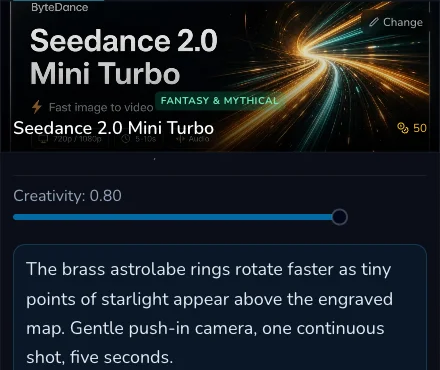
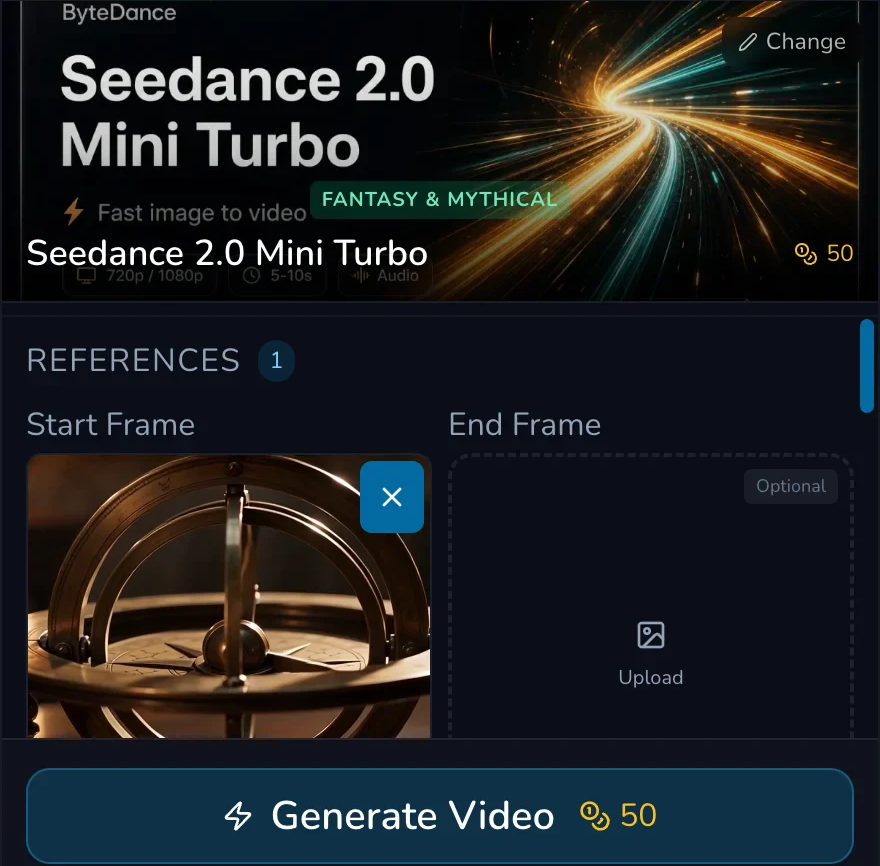
Open Video Create and select the current model that visibly supports your intended inputs. Attach the cleared still as Start Frame. It defines the opening visual state, not every later pixel. Match the source’s aspect ratio to the intended clip where practical. The reviewed request used 16:9, but the source still’s original dimensions were not recorded, so this lesson does not claim they matched.
Matching aspect ratio prevents an avoidable framing conflict, but equal pixel counts are not required. A source and destination can have different dimensions while sharing a shape. Check how the image reads inside the intended frame before you ask it to move.
2. Keep end and guidance references distinct
An optional End Frame is a target visual state, not another version of the start image. Use it only when you can explain how the ending should differ. Reference Images (Text-to-Video) are separate guidance inputs. Give each one a distinct job, such as material detail or a composition cue, and keep the prompt clear enough to reconcile competing instructions.
End frames, reference combinations and caps vary by model. Re-read the mounted controls after choosing the model. Motion Reference is a separate model-specific role, not a substitute name for Start Frame or a guidance image. For that specialised path, see the published Wan Fun motion-transfer lesson.
Write motion that respects the starting image
3. Describe a small change from the established frame
Write what moves, what should remain recognisable and how the camera behaves. For the astrolabe, a restrained prompt can ask for the rings to turn slowly, dust to pass through warm light and a gentle push-in while the desk, materials and overall composition remain readable. Avoid demanding several unrelated changes from a single still.
Choose 16:9, five seconds and 720p only after checking the live selected-model form. The reviewed request also had Generate Audio selected. Check the current amount, prompt and source thumbnail together, then submit once.
Review the completed request chain
4. Wait for completion, then inspect the clip
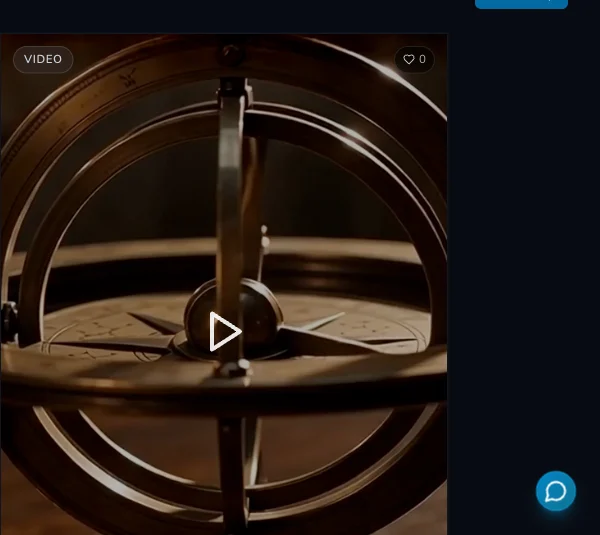
The reviewed request was submitted once, reached completed status, had one request-linked 50 Gold debit and persisted in Gallery. Those completion and settlement facts are supported by the request receipt, not inferred from the prepared controls.
The delivered clip measured 1266 by 726 pixels and 5.056 seconds. Review the start first: does it clearly relate to the owned still? Then review the requested movement, framing and ending. A successful completion is not proof of exact identity, pose or pixel preservation.
Checkpoint
Check your result
- The starting still is cleared for this use and has a declared opening-frame role.
- Any end or guidance image has a different, stated job.
- The source shape suits the requested clip shape without relying on equal pixel counts.
- The one submitted request reached a terminal result, then the clip was checked in Gallery for motion and framing.
Troubleshooting and safe recovery
If something looks wrong
Troubleshooting
- Symptom
- The opening does not resemble the source.
- Likely cause
- The source role may be unclear or the prompt may demand changes that compete with it.
- Next safe action
- Keep the source, narrow the requested movement and use one later request only after the original reaches a terminal state.
- Symptom
- The frame feels cropped or awkward.
- Likely cause
- The source and requested clip have conflicting shapes.
- Next safe action
- Prepare a source that reads well in the target aspect ratio; do not assume matching pixel dimensions are required.
- Symptom
- An optional input is missing.
- Likely cause
- Reference combinations and caps vary by selected model.
- Next safe action
- Use the currently mounted controls and remove any source without a distinct job rather than forcing a remembered workflow.
Keep the original still and completed clip available for comparison. Do not duplicate a request while its status is uncertain. If a result is unsatisfactory, identify one cause, revise only that cause and confirm the live amount before a deliberate next attempt.