
Edit a Timeline with Video, Music and Voiceover
Arrange clips into a coherent short sequence.
Turn a populated Media Centre project into a deliberate sequence at Media Centre. This lesson covers the three default tracks, sequential video editing, a verified trim, positioned music and voiceover, and the controls used to review changes.
Read the timeline before moving anything
1. Identify the three track roles
Put moving pictures on Video, scene music and sound effects on Music / SFX, and spoken narration on Voiceover. The reviewed observatory project begins with two sequential video clips, one music clip and one voiceover clip. Use the play and pause controls to hear and see the current arrangement before editing.
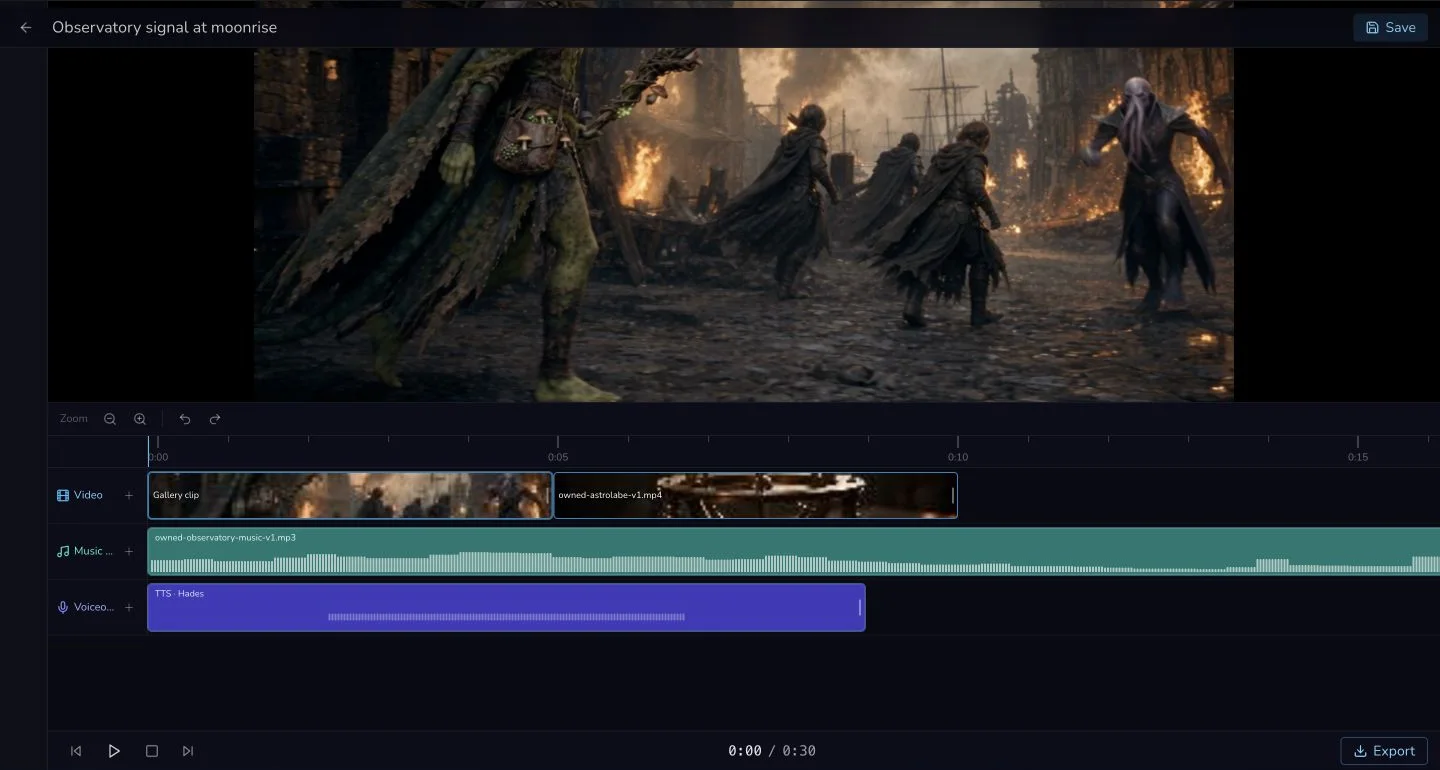
The three rows have different jobs. Video is sequential, while Music / SFX and Voiceover can begin later against the picture.
Set the picture order
2. Reorder video clips and check their new start times
Drag the astrolabe clip before the Gallery clip. Video clips remain end to end, so Media Centre recalculates their timeline starts. In the reviewed edit, the first clip starts at 0:00 and the second starts at 4.256 seconds after the first clip is trimmed. Move the playhead to either side of the cut and preview it rather than judging the thumbnails alone.
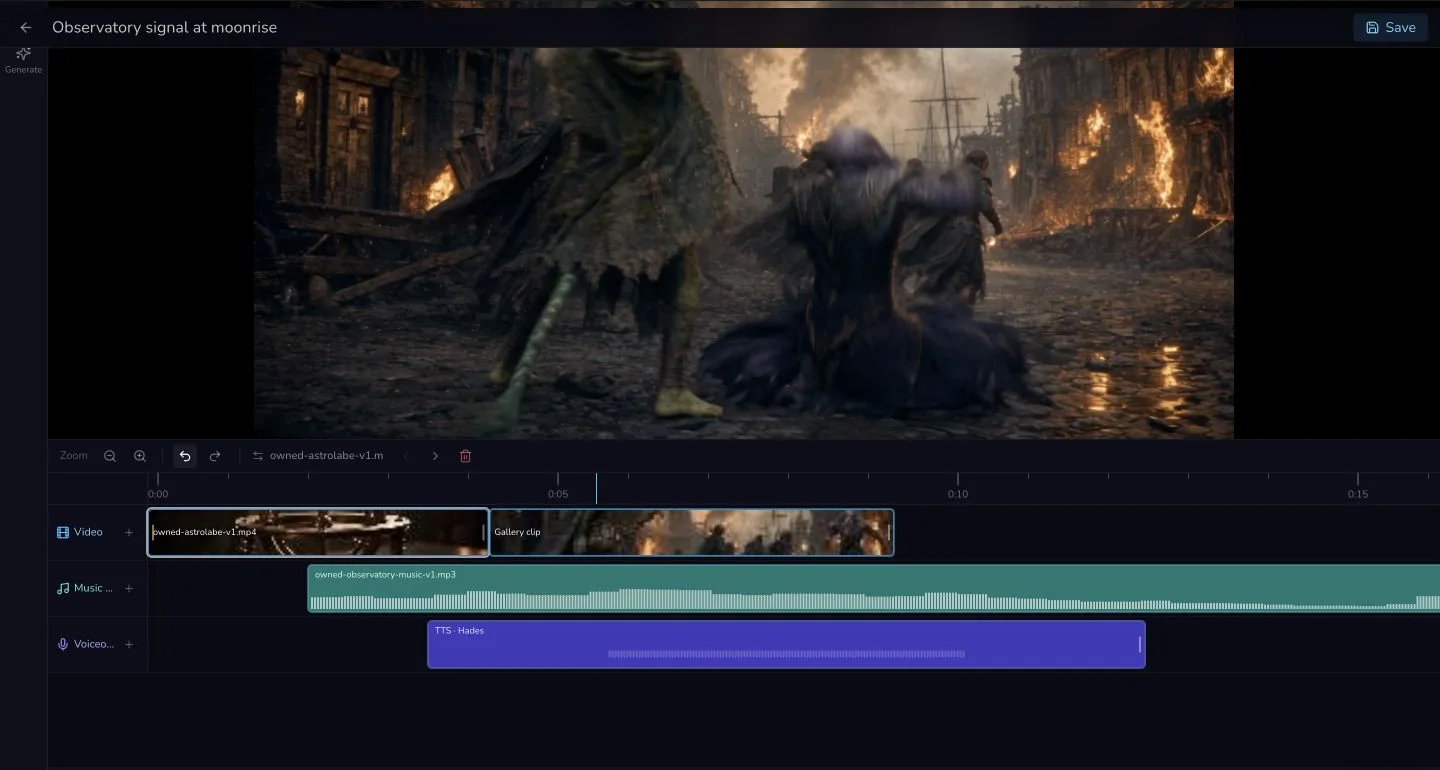
Reordering changes the sequence and recalculates where the next Video clip begins.
3. Trim from the start, then verify the first frame
The source astrolabe clip is 5.056 seconds long. The reviewed edit removes the first 0.8 seconds, leaving 4.256 seconds on the timeline. Source duration, trim offset and timeline start are separate values. Preview from the beginning and confirm the first visible frame changed before relying on the trim.
Place and balance the audio
4. Position Music and Voiceover against the picture
Move the music to 2.0 seconds and the voiceover to 3.5 seconds. Listen from before each start so you can hear the entrance in context. The reviewed music was reduced from full volume to 35%, then compared against the original level to confirm it became audibly quieter. The Voiceover remained at full volume.
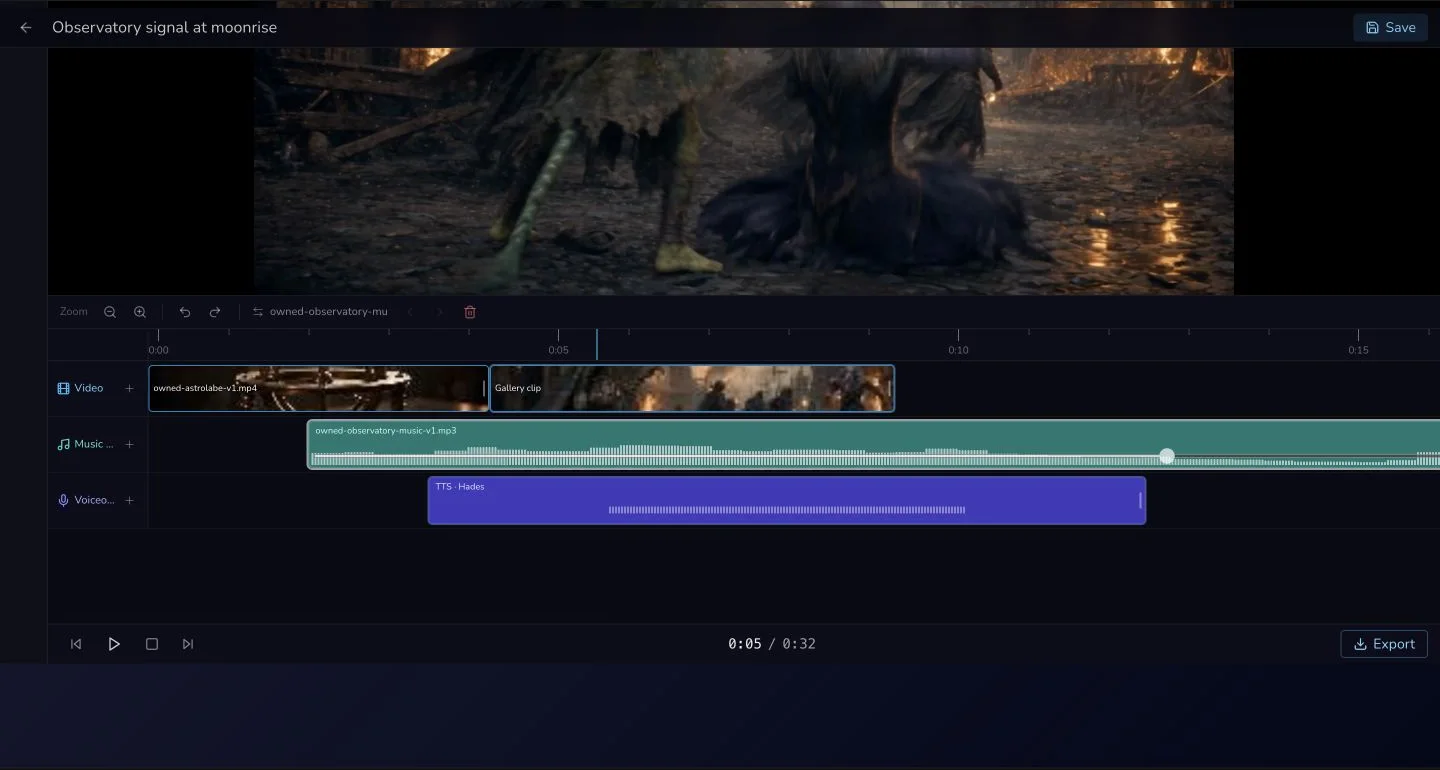
Audio placement sets when a clip enters. Volume should be judged by an audible before-and-after comparison, not by waveform height alone.
Review without losing your place
5. Use transport, zoom, undo and redo deliberately
Use play and pause for timing checks, zoom in when a cut needs precision, and use undo and redo to compare a change with its previous state. On a narrow screen, the same track structure remains readable, but horizontal movement is expected. Return to desktop for pointer-led reordering and trimming.
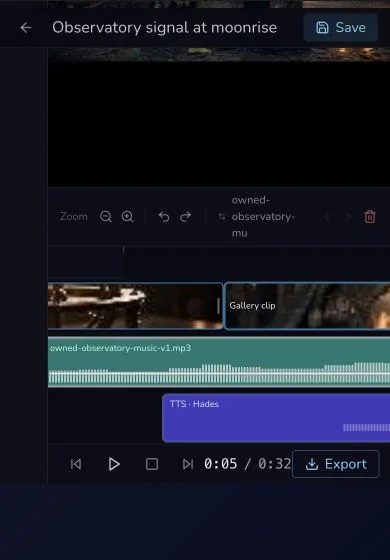
Mobile keeps the lesson navigable and the track roles visible. It is not evidence that touch dragging or trimming is reliable.
Checkpoint
Check your result
- The two Video clips play sequentially in the intended order, with the next start time recalculated after trimming.
- The first clip begins 0.8 seconds into its source and its changed first frame is verified in preview.
- Music starts at 2.0 seconds at 35% volume, while Voiceover starts at 3.5 seconds at full volume.
- Play, pause, zoom, undo and redo are used to review the edit, with pointer-led editing kept on desktop.
Troubleshooting the timeline
If something looks wrong
Troubleshooting
- Symptom
- The second video begins at the wrong moment.
- Likely cause
- The first clip was reordered or trimmed, so sequential start times were recalculated.
- Next safe action
- Check the first clip's visible duration, then preview across the recalculated cut before changing anything else.
- Symptom
- Music covers the voiceover.
- Likely cause
- The clips overlap and the Music level has not been compared against the spoken line.
- Next safe action
- Preview from before the voiceover entrance, reduce Music once, and compare the new level with the previous one.
- Symptom
- Dragging or trimming is difficult on a phone.
- Likely cause
- Touch timeline editing is not part of the verified workflow.
- Next safe action
- Use mobile for review and navigation, then make pointer-led timeline edits on desktop.