
Create Voiceover with Text to Speech
Generate a short voiceover and use the result.
Create a short, reviewable scene voiceover in Audio Studio. This lesson uses the TTS tab at Audio Studio, a stock synthetic voice and one concise narrator line, then checks the completed audio in playback and Gallery.
Before you begin
You need access to Audio Studio, a short approved line and enough Gold for the live estimate. Choose TTS, then select a model and voice from the controls that are currently mounted. The reviewed example used Inworld 1.5 Max with the stock synthetic Hades voice. Press the Hades preview control and listen before generating. A working preview is a useful check that the selected voice is the one you intend to use.
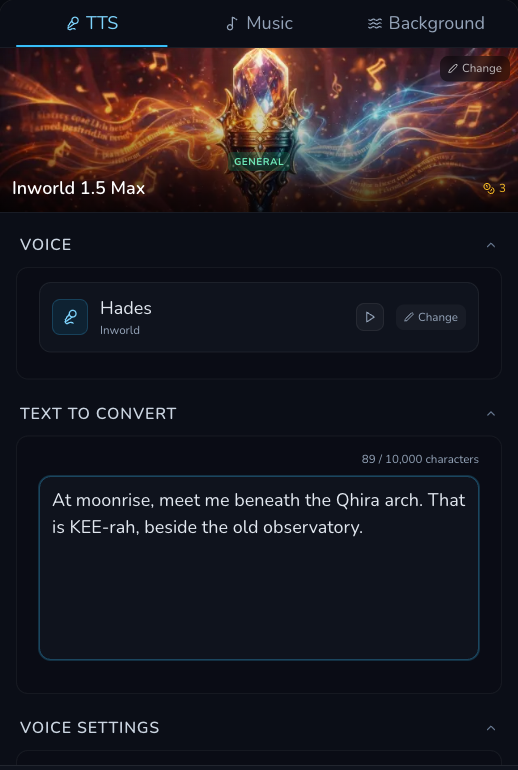
The reviewed TTS workspace shows the selected model, stock Hades voice and short test script. The model and visible controls are dated interface facts.
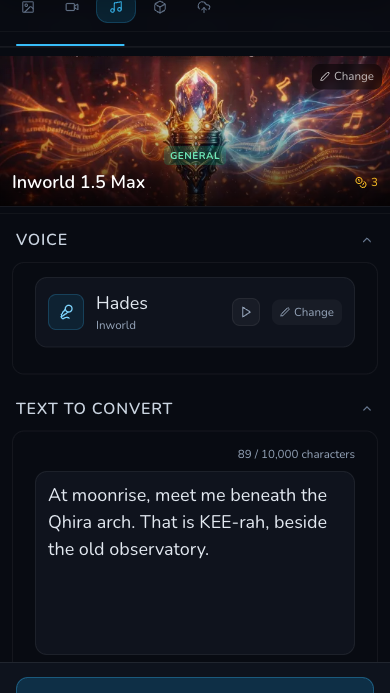
On a narrow screen, confirm the model, voice and script before continuing to the settings below.
Make a short pronunciation test
1. Use one line that exposes the difficult word
In Text to Convert, start with a short line rather than a finished monologue. The reviewed test was: “At moonrise, meet me beneath the Qhira arch. That is KEE-rah, beside the old observatory.” It uses the spelling and phonetic cue together, so you can judge the name before spending on a longer narration.
The selected form showed 89 / 10,000 characters. That counter belongs to this mounted model, not to every TTS option. If you switch models, inspect the new form instead of carrying its limits or controls across.
Adjust only the controls this model shows
2. Keep the voice settings neutral for the first pass
For the selected Inworld form, open Inworld Voice Settings. The reviewed settings were Speaking Rate 1.0x and Temperature 1.0. Keep those neutral values for the pronunciation pass, then make one deliberate change in a later request only if the completed result gives you a specific reason.
The footer displayed a 1 Gold estimate on 1 August 2026. That was a dated display for this configuration, not price guidance. The request-linked debit recorded after completion was 2 Gold, so the reviewed estimate and actual charge did not match.
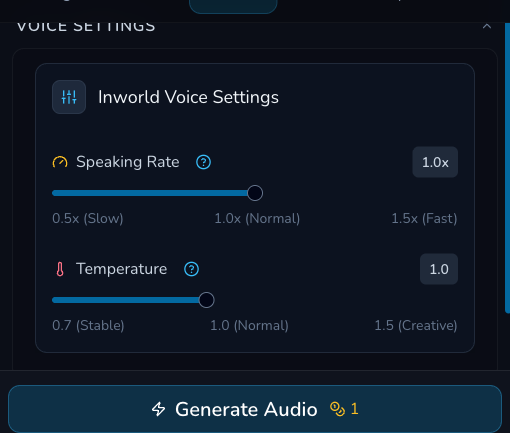
These are the selected model's visible settings and dated footer estimate. Recheck your own footer immediately before submitting.
Submit once and reconcile the completed result
3. Generate once, then wait for the original request
Read the selected model, Hades voice, short script, mounted settings and live estimate together. Press Generate Audio once. Preserve the original request while it resolves, rather than submitting the same text again because the page is slow or a message is unclear.
The reviewed request reached a completed result, had one request-linked debit and then persisted in Gallery. Keep your own request record until you can reconcile the configuration, terminal result, request-linked transaction and Gallery arrival. Do not treat the dated mismatch above as a future price or a reason to submit again.
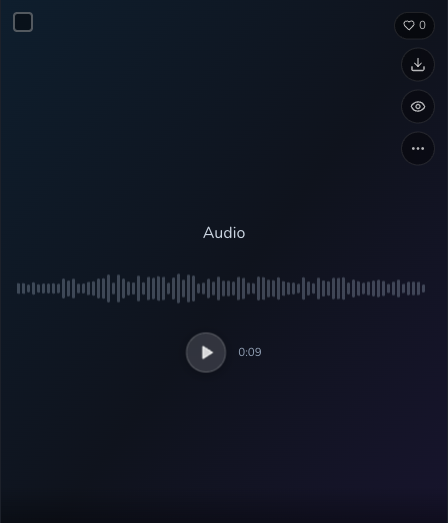
A completed voiceover result exposes playback and download. Use playback to assess pronunciation before keeping the file.
4. Play, download and retrieve the accepted audio
Play the completed result and listen for Qhira being read as KEE-rah. Download the accepted file from its result card, then find the owned result in Gallery when you need it again. The reviewed output was 9.432 seconds, but use your delivered result's own details for any timing decision.
If a completed result card is visible alongside a contradictory failure alert, preserve the original request and reconcile it before doing anything else. That alert does not justify a retry.
Checkpoint
Check your result
- The selected voice is a permitted stock synthetic voice and its preview was checked.
- The short script contains both Qhira and KEE-rah before a longer narration is attempted.
- Only the selected model's visible settings, character counter and live estimate were used.
- The original request, its completed result, request-linked transaction, playback, download and Gallery arrival were checked before another request.
Troubleshooting without duplicate requests
If something looks wrong
Troubleshooting
- Symptom
- I cannot confirm that I may use this voice or reference.
- Likely cause
- Permission is specific to the voice material and intended use.
- Next safe action
- Do not submit. Use a stock synthetic voice or obtain the necessary informed consent first.
- Symptom
- Qhira is not pronounced as intended.
- Likely cause
- The spelling or phonetic cue did not give the selected voice enough direction.
- Next safe action
- Keep the completed result, revise the short test line with one clearer cue and make a later deliberate request.
- Symptom
- A failure alert appears with a playable completed result.
- Likely cause
- The page presents contradictory status information.
- Next safe action
- Do not retry. Preserve the original request, check its terminal state, request-linked transaction and Gallery projection, then decide from that evidence.