
Turn a Prompt or Image into a 3D Model
Generate a candidate asset for downstream use.
Create one candidate 3D asset in 3D Studio, retrieve it from Gallery, then inspect the downloaded file for the job you intend to do next. This lesson uses a text prompt and Meshy6. Image to 3D follows the same review discipline but starts from an owned reference image.
Before you begin
Define the destination before choosing settings. A printable miniature, a realtime game prop and a file for another artist have different requirements. Have enough Gold for the visible model estimate and install or identify the external tool that will inspect the downloaded asset.
For Text to 3D, write an original prompt or use wording you have permission to adapt. For Image to 3D, use an image you created or are licensed to reuse. Remove private details and get consent before using an identifiable person's likeness. A model generated from a protected character or design may still carry rights restrictions even when the source file is technically accepted.
Choose the source for the downstream job
1. Open 3D Studio and choose Text or Image
Open the exact route /generate?contentType=model3d. Choose Text to 3D when shape can be described clearly. Choose Image to 3D when silhouette and proportions need a visual source, then provide only an owned or permitted reference.
The retained run used Text to 3D with: A single stylised stone chess knight on a circular base, centred, symmetrical silhouette, carved as one connected object, no text, no separate pieces. This prompt asks for one inspectable object instead of a scene.
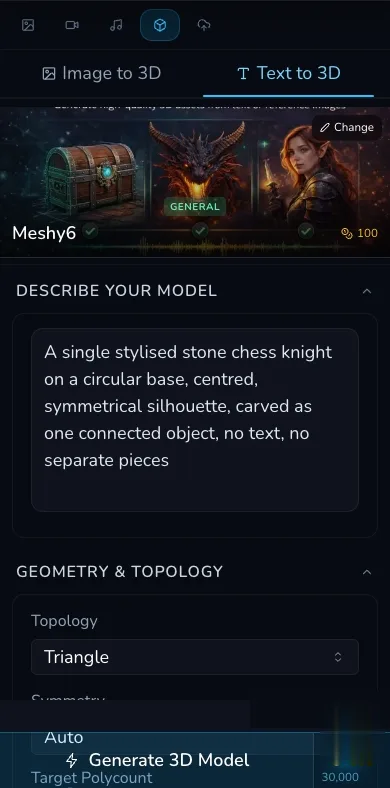
Start with one source and one object. The mobile panel keeps the prompt, model estimate and first geometry controls in the same review path.
Configure Meshy6 within the verified boundary
2. Set geometry as requests, not guarantees
Select Meshy6, then set Topology to Triangle, Symmetry to Auto, Target Polycount to 30,000 and Remesh on. Leave T/A Pose off for this chess piece. These Meshy6 fields are sent with the request, but the target polycount remains a target. The retained GLB contained 30,653 triangles, not exactly 30,000.
T/A Pose asks for a pose. It does not create bones, skin weights or an animation rig. Remesh asks for a topology pass. It does not prove a watertight printable shell or production-ready edge flow.
3. Choose texturing deliberately
Meshy6 can send Generate Textures, Enable PBR, a texture prompt and an optional permitted texture reference. In text mode it can also send the selected art style and prompt-expansion setting. PBR is available only when texturing is enabled in the mounted form.
Use a material prompt for surface intent, not geometry. The retained GLB contained one material, one texture and one embedded JPEG image. That inspection confirms what was delivered in this file. It does not prove that every material will survive conversion into another format.
Keep the downloaded GLB when its embedded scene, material and texture need to travel together. If you convert it, remember that STL carries geometry, not the GLB's texture or material setup. An STL that opens without colour has not necessarily lost geometry. It has crossed a format boundary that does not carry those appearance assets.
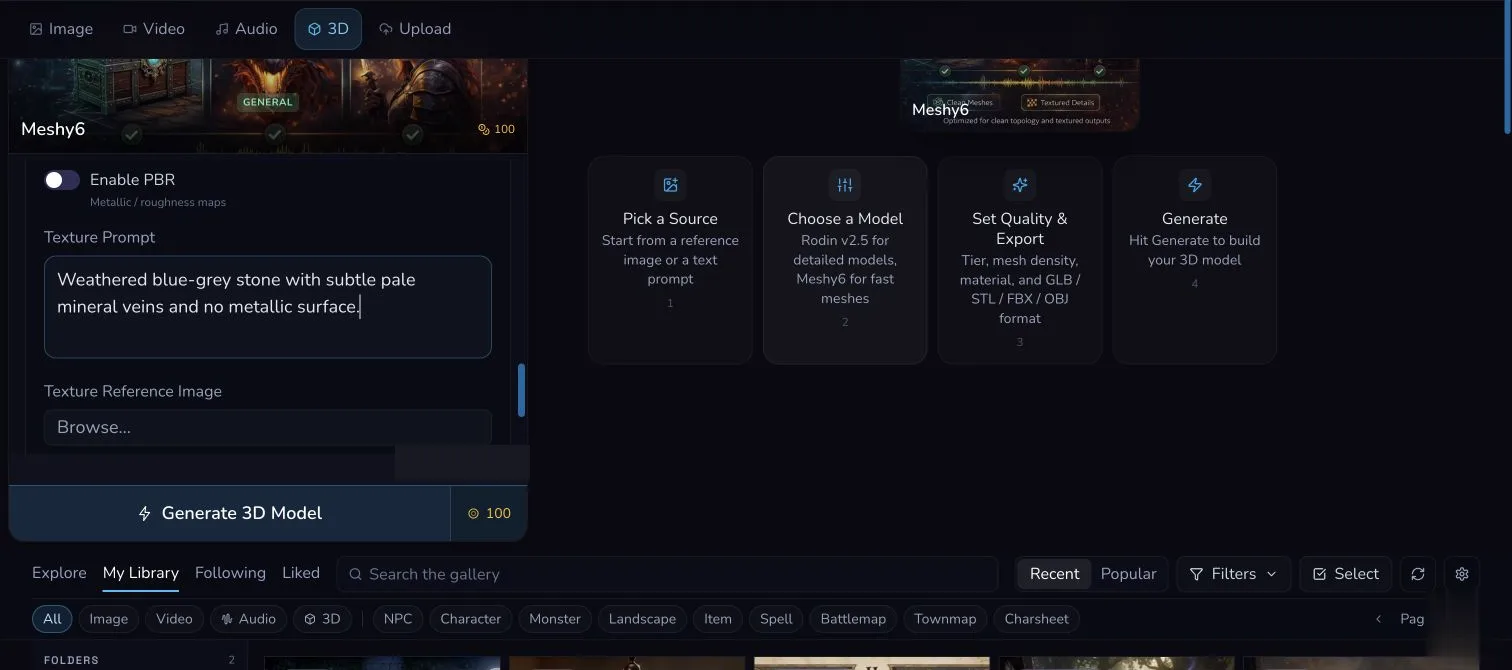
The worked Meshy6 request cost 100 Gold. Geometry, texturing and output choices still need checks against the intended destination.
Keep Rodin claims inside the current transport boundary
Rodin v2.5 is visible in the same picker, with displayed tiers of 25, 35, 45, 70 and 90 Gold. The optional High-Detail Pack adds 90 Gold. Those different prices do not prove different provider tiers: the reviewed transport sends Extreme-High as Extreme-High but currently maps the other four choices to Medium. It reliably forwards the source or prompt, selected format and High-Detail Pack. Other visible Rodin controls must not be taught as effective until downstream forwarding is repaired and retained evidence proves it.
If your workflow depends on a particular Rodin material, symmetry, pose, texture or other advanced setting, stop before spending Gold. A mounted switch proves only that the frontend can display and submit a value. It does not prove the worker used it.
Choose the export format for the destination, not for the label alone. CharGen's viewer can open GLB/GLTF, STL and OBJ. It cannot preview USDZ or FBX, even though Rodin can return the selected format. Download and validate either of those formats in the intended external tool.
Submit once through Background Queue
4. Check 100 Gold and queue one request
Turn Background Queue on, recheck the prompt and Meshy6 settings, then confirm the 100 Gold estimate. Submit once. Background Queue allows the request to continue while you use the app and gives it a tracked queue state. It does not justify submitting a duplicate when completion is slow.
Preserve the existing queue item and reconcile it with My Library before considering another request. The retained run submitted once, settled at 100 Gold and reached completed with the same request and result identity.
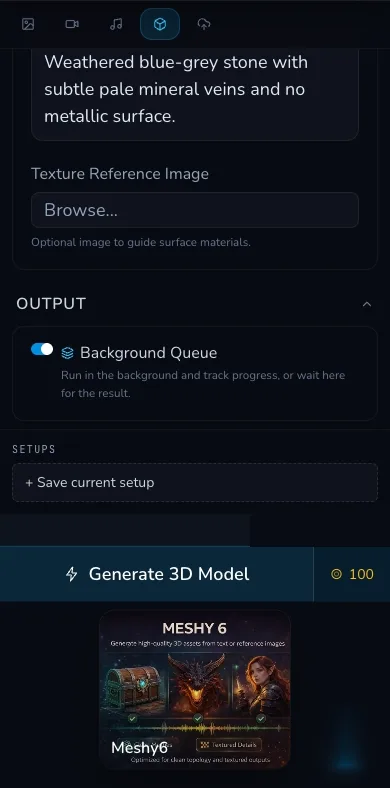
Switch on Background Queue and check the 100 Gold action before one submission. The terminal queue and result identity are retained in the lesson evidence rather than inferred from this control screenshot.
Retrieve and inspect the actual file
5. Open the result in Gallery and download the GLB
Find the completed Meshy6 result in My Library, open the 3D viewer and use orbit, pan and zoom to check that one connected-looking chess knight is visible. Then use Download and retain the returned GLB.
The reviewed download was a 4,860,232-byte GLB. Inspection found one scene, one node, one mesh, 25,128 position vertices, 30,653 triangles, one material and one embedded texture. These are properties of the retained bytes, not promises for every Meshy6 result.
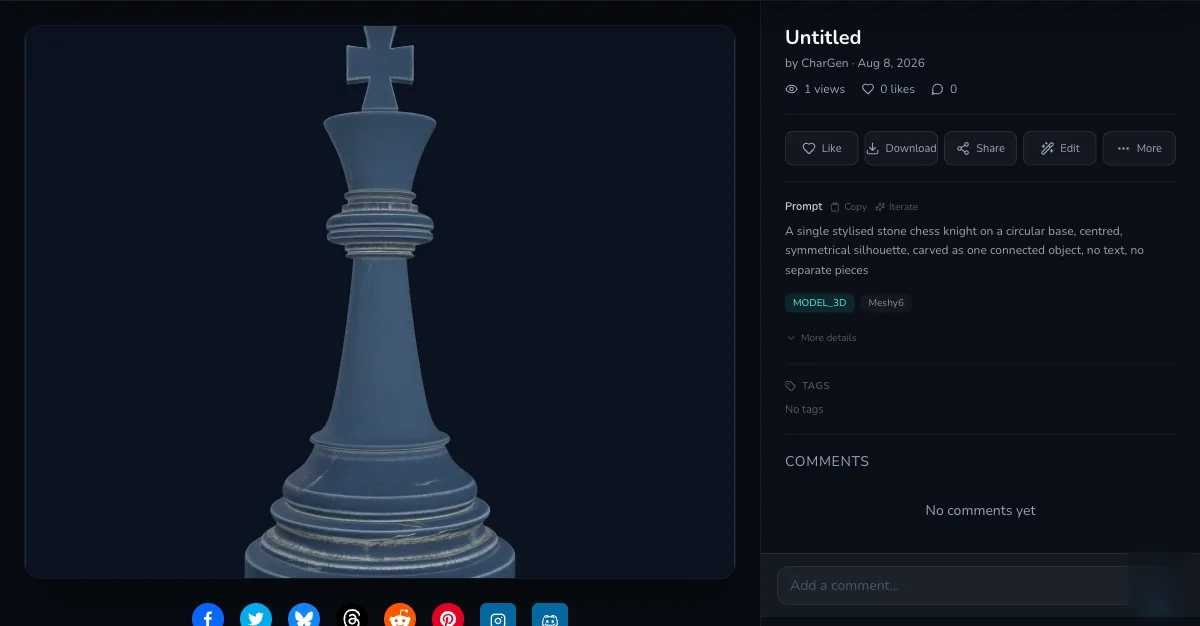
Viewer readability confirms that CharGen can display this GLB. The download must still be inspected for its intended downstream use.
Run the checklist that matches the destination
6. Validate outside CharGen before calling it ready
Import the downloaded file into the tool used for the next stage. Record what passed and what still needs work.
For printing:
- Confirm the file's units, set the intended physical scale and measure the finished height. Do not assume 32 mm.
- Check manifold and watertight geometry, open boundaries, self-intersections and separate shells.
- Measure minimum wall thickness and fragile details at the intended scale.
- Review orientation, overhangs, supports, base contact and the slicer's final preview.
For realtime use:
- Compare the delivered triangle count with the project's actual budget. A 30,000 target is not an exact result or a performance test.
- Inspect face normals, smoothing, UVs, materials, texture size and missing texture links.
- Check transforms, pivot, collision needs and level-of-detail requirements in the target engine.
- Confirm rigging, skinning and animations separately. A T/A pose is not a rig.
For interchange:
- Confirm the extension, file bytes, units, axes, transforms and object count after import.
- Check whether materials and textures are embedded, linked or unsupported by the chosen format.
- Reopen an exported copy in the receiving tool before handing it off.
Checkpoint
Check your result
- The completed result opens in CharGen's 3D viewer and shows the intended single chess-knight asset.
- The downloaded file is confirmed as the retained 4,860,232-byte GLB rather than an assumed format.
- The GLB is imported into the target tool, where the delivered 30,653 triangles, mesh, material and embedded texture are inspected instead of inferred from the 30,000 target.
- Print, realtime or interchange readiness is claimed only after the matching external checklist passes, with no assumption of 32 mm scale, watertightness, rigging or engine readiness.
Troubleshooting 3D generation and handoff
If something looks wrong
Troubleshooting
- Symptom
- A queued Meshy6 job has not appeared in My Library yet.
- Likely cause
- The existing request may still be processing or its local queue view may be stale.
- Next safe action
- Keep the request details, refresh My Library deliberately and reconcile the same queue item before considering another paid submission.
- Symptom
- The delivered triangle count differs from the 30000 target.
- Likely cause
- Target Polycount guides generation and remeshing but does not guarantee an exact delivered count.
- Next safe action
- Measure the downloaded mesh in the target tool, then simplify or regenerate only if the actual downstream budget requires it.
- Symptom
- An STL opens without the texture shown in the GLB viewer.
- Likely cause
- STL carries geometry but not the GLB material and texture setup.
- Next safe action
- Use GLB or another target-supported material workflow when appearance must travel, and verify texture import in the receiving tool.
- Symptom
- The model looks correct in CharGen but fails a slicer or game-engine check.
- Likely cause
- Viewer readability does not validate manifold geometry, scale, walls, normals, UVs, rigging or performance.
- Next safe action
- Keep the original GLB, run the relevant external checklist and repair the specific failing property before calling the asset ready.
- Symptom
- A Rodin advanced control is visible but the result ignores it.
- Likely cause
- The current downstream transport does not reliably forward all mounted Rodin controls.
- Next safe action
- Do not repeat the request to test the same unsupported assumption. Use only the proven Rodin boundary or choose the verified Meshy6 workflow until forwarding is repaired.