
Aspect Ratio, Resolution, Quality and Count
Choose the correct canvas and output budget.
Choose the frame for the scene first, then choose the pixels, model-specific controls and Count that fit the job. The square, portrait and landscape examples below were reviewed on 30 July 2026 with Flux 2 Flash and Count 1.
Separate ratio from pixels
An aspect ratio describes the shape of a frame, not its pixel count. 1:1 is a square, 2:3 is portrait and 3:2 is landscape. Pixel dimensions state how many pixels fill that shape, such as 1024 × 1024, 768 × 1152 or 1152 × 768.
The strict canvas receipt used one shared scene: an astronomer and a minotaur guide beside a ruined desert observatory. Its square baseline was 1:1 at 1024 × 1024. The two orientation requests kept that scene intent, the Flux 2 Flash model and Count 1 while changing the canvas to 2:3 and 3:2.
Separate resolution from quality
Resolution can mean exact pixel dimensions, while a provider may instead offer a named resolution tier. Quality is another model-specific setting. They are not interchangeable controls.
In the reviewed form, GPT Image 2 exposed preset pixels, Custom Width/Height and Quality. Seedream 5.0 Pro exposed aspect ratios and a Resolution tier. Flux 2 Flash, used for the orientation evidence, showed no separate Quality or Resolution selector. Read the controls that actually mount for your model.
Generation quality is also different from later upscaling. A later upscale can change the file's pixel dimensions, but it does not prove that the generation used a particular quality setting.
Prepare square, portrait and landscape
1. Keep the scene intent stable
Use the same subject, setting and important constraints while testing canvas shape. For the reviewed comparison, the astronomer and horned minotaur guide remain full length in the desert beside the ruined observatory. Keep Count 1 so you are comparing one output per request.
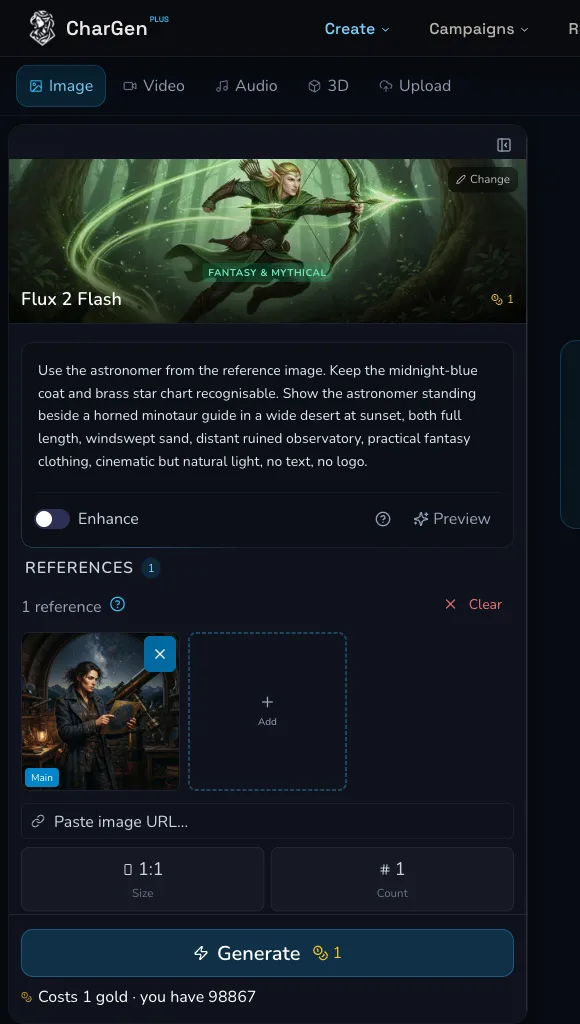
The reviewed square baseline retains the shared scene intent with Count
- The receipt records the later landscape preparation and result.
2. Set each orientation deliberately
Prepare a square baseline, then make one portrait and one landscape request if the live model offers those ratios. The completed portrait request used 2:3 and rendered at 768 × 1152. The completed landscape request used 3:2 and rendered at 1152 × 768. Check the final model, visible size label, Count and configured estimate before each submission.
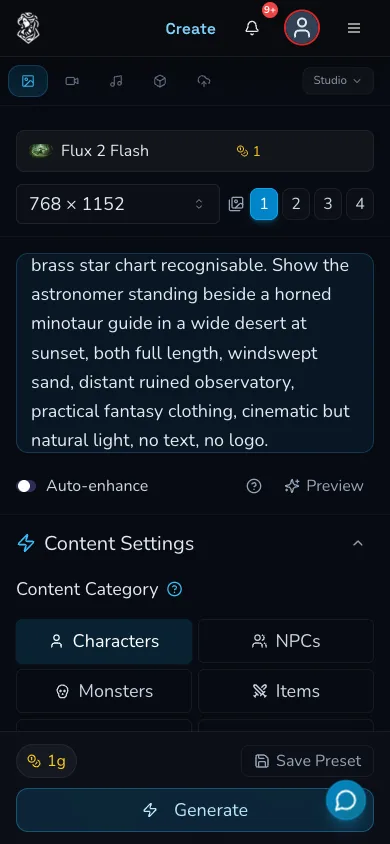
The mobile portrait preparation. Use the live footer to check the current estimate before submitting.
Check framing before adding pixels
Look for the framing problem before increasing pixels. The reviewed portrait result retained more vertical room for bodies and shadows. The landscape result retained more desert and observatory context. Those are framing differences, not guarantees about any future generation.
More pixels do not repair framing. If a head, hands or the intended background are missing, first choose a ratio and prompt composition that leave room for them. DPI is not guaranteed by Image Studio or by the pixel dimensions in a result. A print workflow needs its own printer and output requirements.
Understand Count and configured cost
Count is the number of outputs requested. It is not the resolution of one image and it does not make a single image sharper. The reviewed canvas requests used Count 1, with a displayed estimate of 1 Gold per request and an actual charge of 1 Gold for each completed portrait and landscape request.
Change one decision at a time: choose the model, ratio, any visible Quality or Resolution tier, and Count. Then read the amount on the live Generate control. A model card, starting badge or an older screenshot is not the final configured cost.
Compare the resulting orientations
The strict canvas receipt records a 1024 × 1024 square baseline plus one completed portrait and one completed landscape result. All three use the same shared scene intent. Compare them against the job you actually need:
- Use square when the subject and surrounding context need equal emphasis.
- Use portrait when the important check is vertical room around a standing subject.
- Use landscape when the environment or wide relationship needs more width.
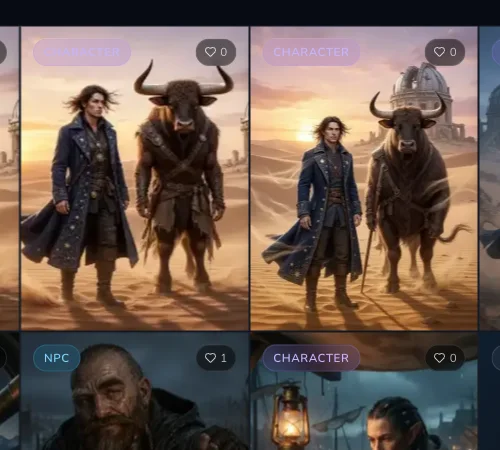
The completed results reached My Library. Use the recorded dimensions, then compare the visible room for the characters and environment rather than treating one orientation as universally better.
Checkpoint
Check your result
- The ratio matches the destination or framing need. - You can name the actual pixel dimensions separately from the ratio. - You have checked whether this model offers a Quality or Resolution control. - Count and the current configured Gold estimate are visible before submission. - You have judged framing before spending more on pixels.
Troubleshooting
If something looks wrong
Troubleshooting
- Symptom
- The selected ratio does not give the subject enough room.
- Likely cause
- The frame shape or composition instruction does not fit the scene.
- Next safe action
- Choose a ratio with the needed vertical or horizontal space, then state the intended framing in the prompt before changing pixel settings.
- Symptom
- Quality or Resolution disappeared after changing model.
- Likely cause
- Those controls are model-dependent and are not the same setting.
- Next safe action
- Inspect the selected form and choose a model that visibly offers the control your output needs.
- Symptom
- The estimate changed after setting Count or a canvas control.
- Likely cause
- The configured request changed.
- Next safe action
- Read the live Generate amount again and submit only when the configuration and estimate are acceptable.
- Symptom
- A higher-resolution result still has the wrong crop.
- Likely cause
- Additional pixels cannot repair a framing decision.
- Next safe action
- Adjust the ratio and composition instruction, then compare one deliberate request after the original reaches a terminal state.